
- Training
- Service
- Promotion
- Schedule
- Testing Center
- News
- Contact
6/23/2022


Bottom Line: Learn time-saving shortcuts for working with folders and files.
Skill Level: Beginner
Watch the Tutorial
Below are 12 of my favorite keyboard shortcuts to use when working with Windows File Explorer. These will work for both Windows 10 and Windows 11.
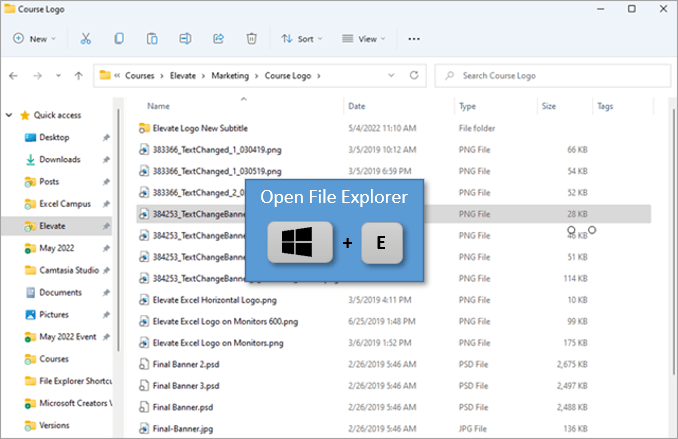
1. Opening File Explorer
To open the File Explorer window, simply press the Windows button ⊞ + E.
2. Set Focus on Side Bar
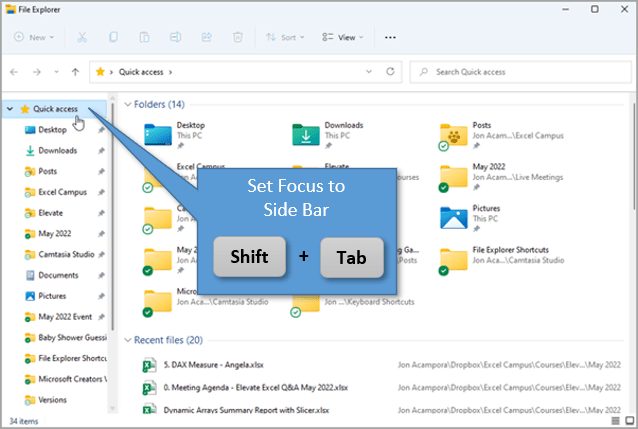
Once your window is open, you may want to jump over to the Navigation Pane sidebar to navigate to pinned items in the Quick Access menu.
Shift + Tab will move your selection from the files in the main window to the folder options in the left sidebar. (Tab will move you back to the main window). In either location, you can use your arrow keys to go up or down in the list of folders.
3. Open a New Window with the Same Folder
Ctrl + N will essentially duplicate the File Explorer window you are currently in.
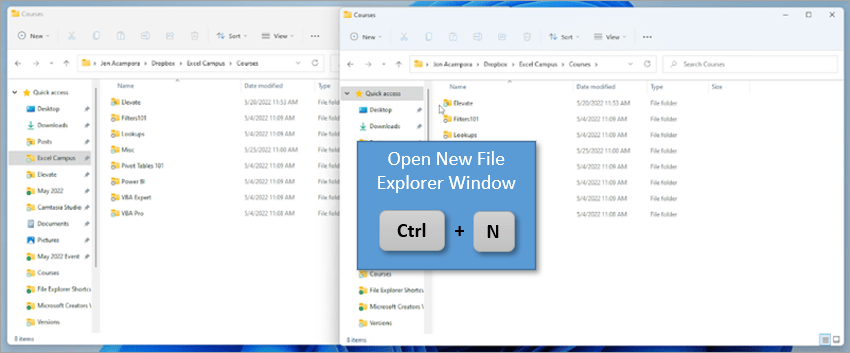
This is especially helpful when you are organizing files and moving them between various folders because you can simply drag them from window to window.
4. Close a File Explorer Window
When you are done with a File Explorer window (or any window, for that matter) just use Ctrl + W to close the selected window.
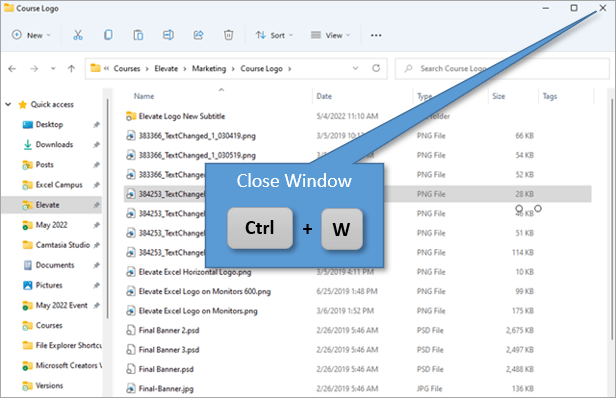
Another option to close the window is Alt + F4.
5. Create a New Folder
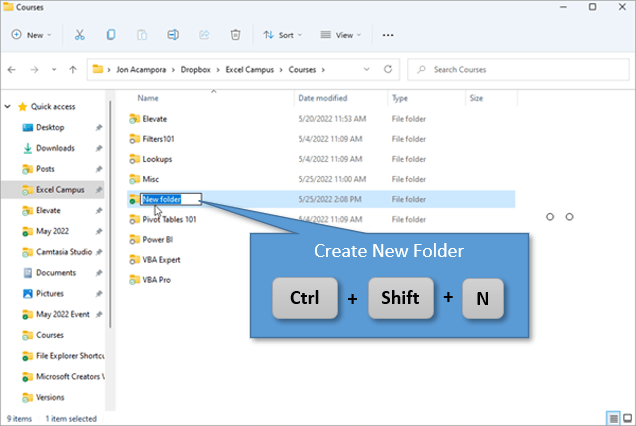
The shortcut for making a new folder is Ctrl + Shift + N. You will immediately be prompted to name the new folder.
6. Navigate to Other Folders
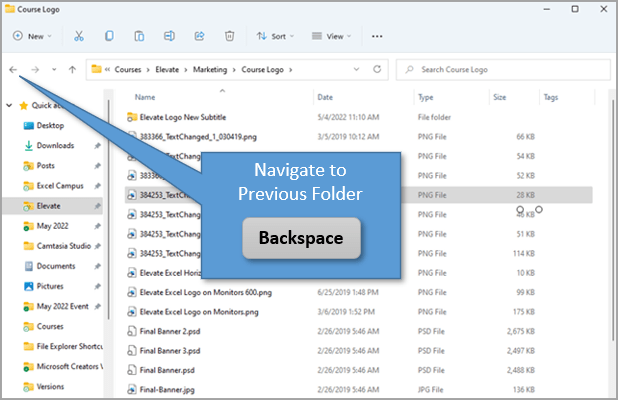
Simply hit Backspace to move to the previous folder. It's the same as using the left-pointing arrow. (This tip also works in your web browser.)
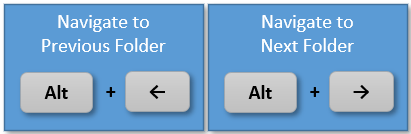
An alternative option is to use Alt + ←. Likewise, Alt + → will move you to the next folder.
7. Navigate to the Parent Folder
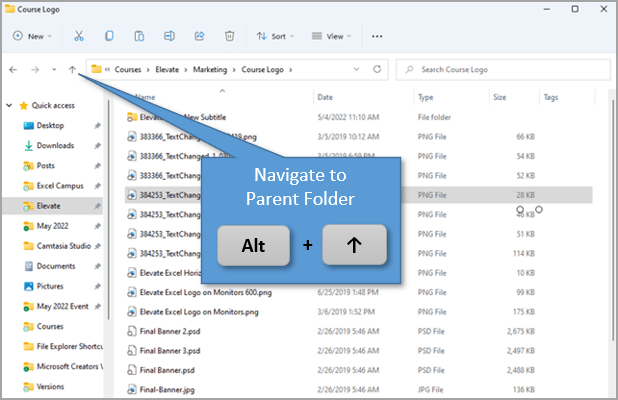
Alt + ↑ will move you to the parent folder.
8. Renaming Files and Folders
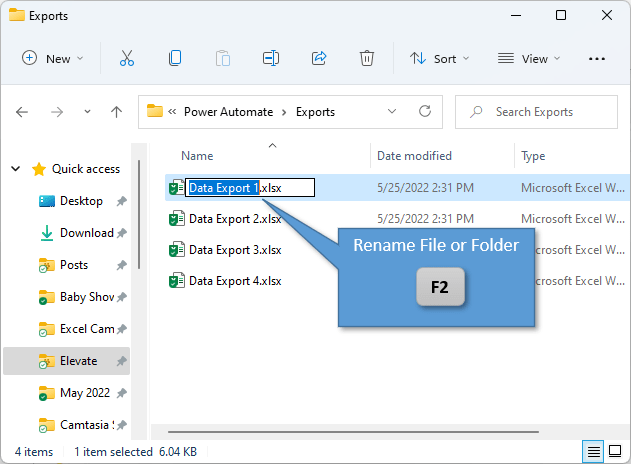
To edit or rename a file or folder, simply hit F2 when your file is selected. (If you are on a laptop, you may have to press the Fn key when you hit F2.)
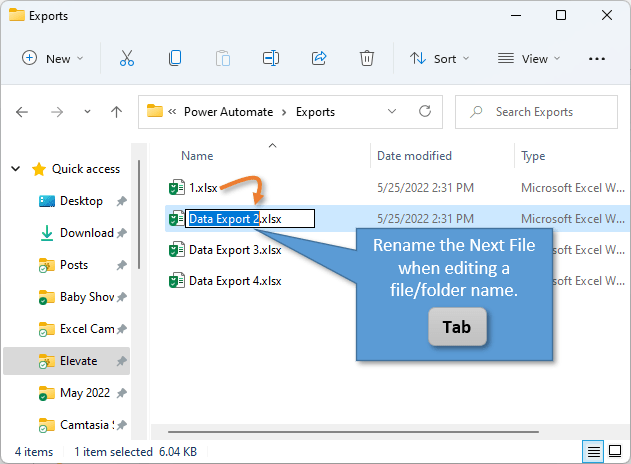
If you also want to rename subsequent files/folders in your list, you can hit Tab after renaming instead of Enter, and it will jump you to the next file. This is a great way to quickly rename multiple files.
To discard those changes and exit the edit mode, you can press Esc.
9. Select the Address Bar
Ctrl + L is the shortcut to navigate to the address bar, and it automatically selects all of the text in the bar for easy copying.
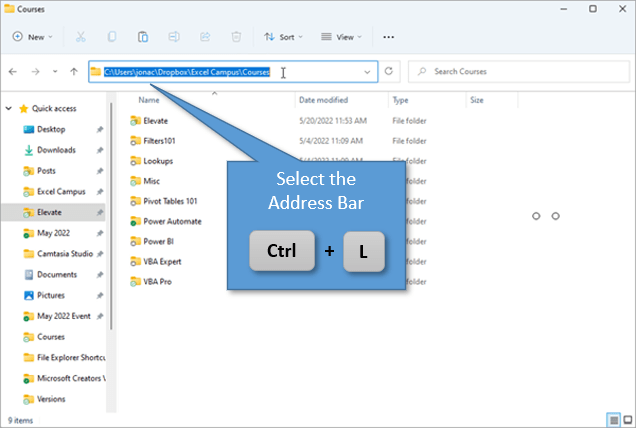
An alternate shortcut for this is Alt + D. These shortcuts also work in your web browser.
10. Search File Explorer
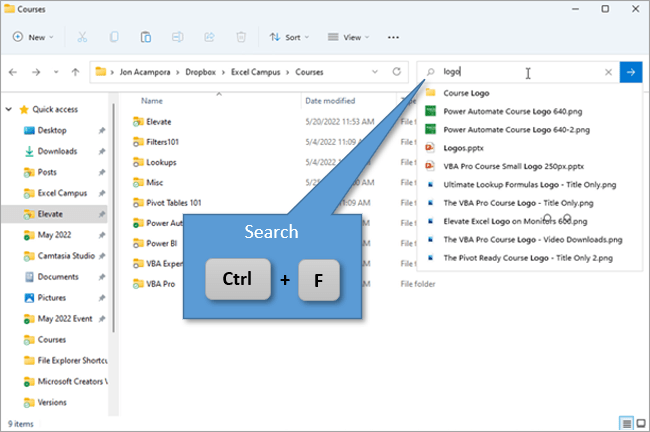
To navigate to the Search field, just press Ctrl + F. Then you can type whatever you are looking for and hit Enter to see all of the files within the current folder that contain that word.
11. Change the View
There are several views that are available in File Explorer, ranging from Extra Large Icon View to Detailed List View. The two that are most used are Large Icons (Ctrl + Shift + 2) and Details (Ctrl + Shift + 6).
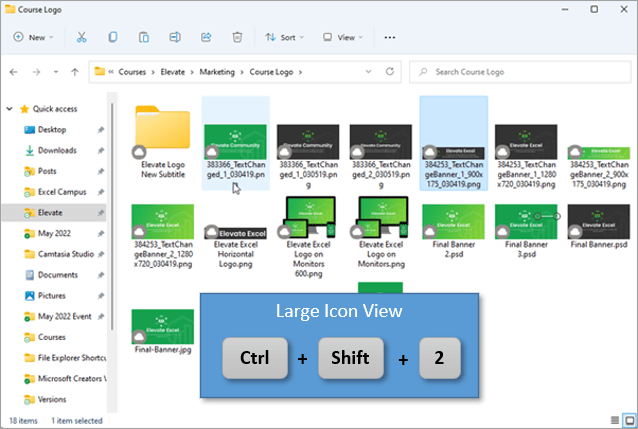
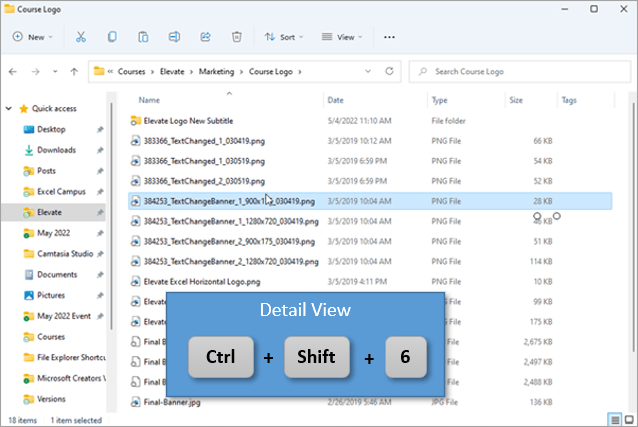
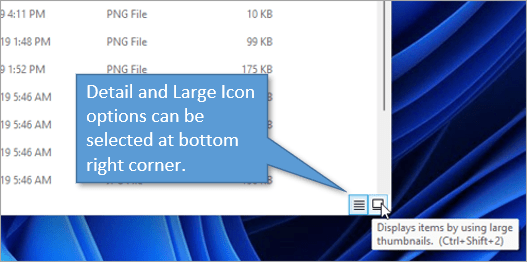
These two options are also available as buttons in the bottom right-hand corner of the File Explorer window.
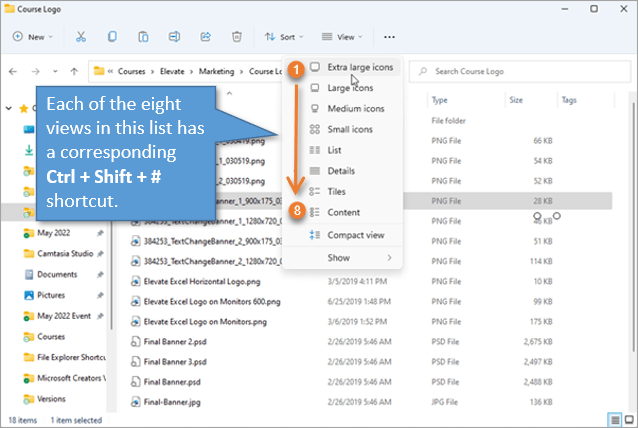
The reason these shortcuts include a 2 and a 6 is because they are second and sixth in the list of view options available. A shortcut can be made for any of the other options by using the corresponding number.
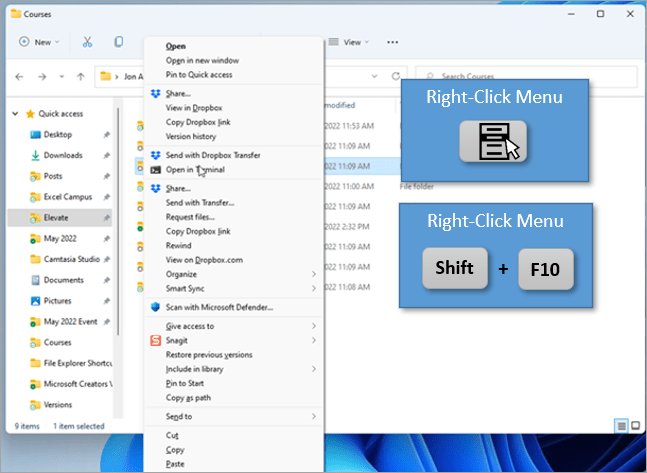
12. Right-Click Menu
To open the right-click menu you can either use the Menu key or Shift + F10.
Not all keyboards have a Menu key. If yours has one it will be between the Ctrl and Alt keys on the right side of your keyboard.
If you don't have a Menu key, you can use Shift + F10.
Source: excelcampus.com

12/11/2025


